
The URI "ms-settings:quietmomentsscheduled" leads to the scheduled “quiet moments” settings within the Windows 10 und 11 Settings app.
This feature allows users to set times when notifications are reduced or suppressed to ensure uninterrupted working or presenting.
1. ms-settings:quietmomentsscheduled
2. Availability under Windows
3. Other useful commands in the Windows settings
1. The Command ms-settings:quietmomentsscheduled
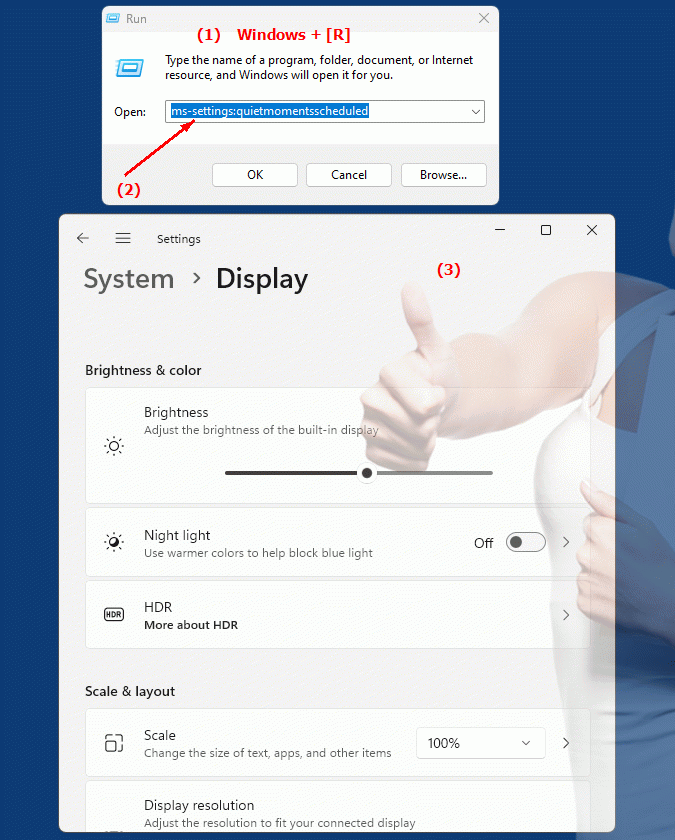
1. Press Windows R on your keyboard.2. Simply execute the following command: ms-settings:quietmomentsscheduled
(This command can also be used as a desktop shortcut.)
3. You can complete the operation by pressing OK or by pressing [Enter].
(... see Image-1 Point 1 to 3)
The settings described above are now accessible in your Windows 10, 11 or 12 operating system.
In this way, the following questions and challenges can be overcome.
1b. In this way, the following questions and challenges can be overcome.
Where can I find the scheduled sleep settings in the Windows Settings app?How can you ensure that notifications are suppressed during certain times to ensure a quiet working environment?
In which area of ??the Windows Settings app can you set scheduled sleep times?
How to adjust or configure scheduled sleep times in Windows Settings?
What options are available to users to manage notifications suppressed in Quiet mode?
How to set scheduled sleep time in Windows settings?
How do you change the quiet times in Windows settings to ensure a disruption-free working environment?
How to adjust scheduled sleep time in Windows settings to reduce notifications?
How do you configure scheduled rest time to ensure notifications are reduced during scheduled breaks?
Which tool in Windows Settings allows users to set and manage quiet times?
What is the special importance of planned rest periods in relation to working and presenting in the office?
How do you ensure that notifications can be suppressed during scheduled breaks?
2. Availability in Windows 10, 11, 12 and the corresponding build numbers!
Availability in Windows versions
1.Windows10:
- Availability:
The "ms-settings:quietmomentsscheduled" URI is not available in Windows 10. While Windows 10 supports features to control notifications and Do Not Disturb modes, it does not provide specific URI settings for scheduled quiet times.
- Alternatives:
In Windows 10, users can manually enable and configure Do Not Disturb mode, but cannot set automated scheduled quiet times in the same way.
2.Windows11:
- Availability:
The "ms-settings:quietmomentsscheduled" URI is available in Windows 11. This feature was introduced to make it easier to manage notifications during scheduled quiet times.
- Build number:
This URI is available starting with Windows 11 Build 22000. The introduction of this feature allows users to schedule fixed periods of quiet time to automatically reduce or suppress notifications.
Features in Windows 11:
- Scheduled Quiet Hours:
Allows users to set specific times when notifications will be minimized.
- Automation:
Users can specify when and for how long “sleep mode” should be active without having to activate it manually.
- User-friendly management:
A user-friendly interface for managing these scheduled times.
3.Windows12:
- Availability:
The URI "ms-settings:quietmomentsscheduled" is also expected in Windows 12. Windows 12 is expected to further improve this feature to allow even more precise control of quiet times.
- Build number:
The exact build number will be determined when Windows 12 is released, but the feature will likely be available in the early versions of Windows 12.
Expected features in Windows 12:
- Advanced Scheduling Options:
More options to fine-tune scheduled quiet times and notification settings.
- Optimized user interface:
User interface improvements for a more seamless and intuitive rest time management.
Summary
The URI "ms-settings:quietmomentsscheduled" leads to the scheduled "quiet moments" settings in the Windows Settings app. This feature is available starting with Windows 11 build 22000 and allows users to set specific times when notifications are automatically reduced or suppressed. There is no specific URI for this feature in Windows 10 and users must use alternative methods to manage notifications. Windows 12 is expected to further improve and expand this feature to provide more precise and user-friendly control over quiet times.