
The ms-settings:appsfeatures URI in Windows 10 und 11 leads to the Apps and Features settings, which allow users to manage installed programs and apps.
This page provides options to install, uninstall, modify, and repair apps. Here is a detailed description of the availability of this URI in the different versions of Windows, along with the associated build numbers:
1. ms-settings:appsfeatures
2. Availability under Windows
3. Other useful commands in the Windows settings
1. The Command ms-settings:appsfeatures
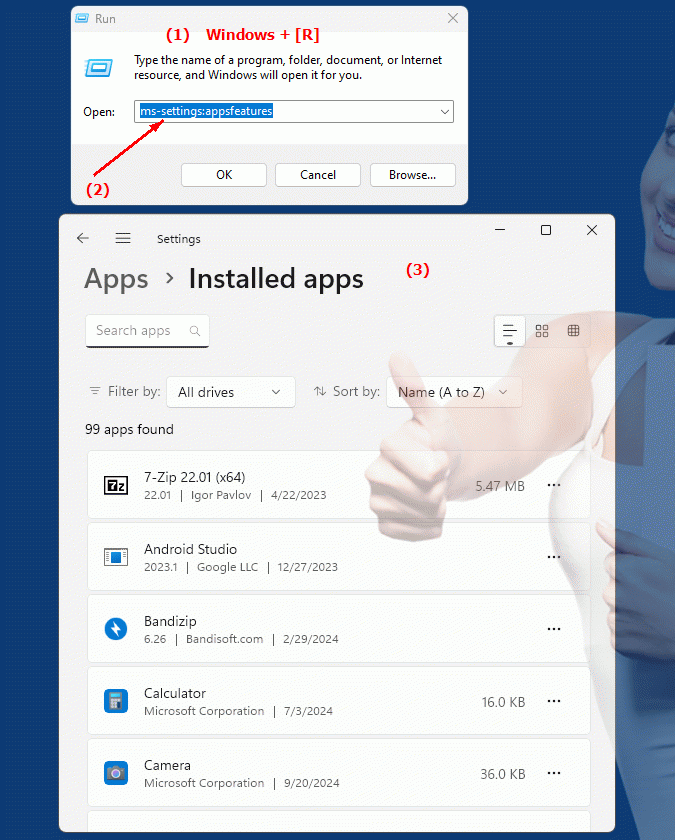
1. Start the dialog box using the Windows R key combination.2. Simply enter the command: ms-settings:appsfeatures
(You have the option of using the command for a desktop shortcut.)
3. To continue, press the OK button or [Enter].
(... see Image-1 Point 1 to 3)
You now have access to the settings mentioned in Windows 10, 11 or 12.
In this way, the following questions and challenges can be overcome.
1b. In this way, the following questions and challenges can be overcome.
How can users manage apps and programs installed through this URI?How do users change the functionality of an installed app using this URI?
What kind of problems can you fix using the Repair Installed Apps option in Windows?
2. Support in Windows 10, 11 and 12 starting with the build numbers.
Availability by Windows version
1. Windows 10:
- Available from:
Windows 10 Version 1607 (Build 14393)
- Description:
In Windows 10 version 1607 and later, the ms-settings:appsfeatures URI leads to the Apps and features settings, which allow users to manage apps. This page is also known as Apps & Features in the Windows Settings pane.
- Features:
- View installed apps:
Users can view a list of all installed apps, including installed Store apps and desktop applications.
- Uninstall Apps:
Users can select and uninstall apps.
- Modify or repair apps:
For certain apps, the page provides options to modify or repair if the app is not working properly.
- Sort and Filter:
Users can sort and filter the list by name, size or installation date.
2. Windows 11:
- Available from:
Windows 11 Version 21H2 (Build 22000)
- Description:
In Windows 11, the URI "ms-settings:appsfeatures" also leads to the settings for apps and features. The user interface has been modernized to better fit the design of Windows 11.
- Optimized UI:
The site features an updated and more user-friendly interface that makes it easier to manage apps and features.
- Features:
The basic functionality remains the same, but there may be additional features or user interface improvements.
- Quick access:
Improved search and filter options help users quickly find the apps they need.
3. Windows 12:
- Available from:
Windows 12 is expected to be released in 2024.
- Description:
In Windows 12, the ms-settings:appsfeatures URI will continue to be available and may feature further UI and functionality improvements.
- Expected improvements:
Windows 12 could offer additional features or a further optimized user interface to make managing apps and features even easier.
- Integration of new features:
It is possible that Windows 12 will introduce new features for managing apps or further improve existing features.
Description of the function
The URI "ms-settings:appsfeatures" leads to a section in Windows Settings known as "Apps & Features". Here are the main features and options accessible through this URI:
- List of installed apps:
- View:
Users can view a complete list of all apps installed on their system.
- Categories:
The list includes both apps from the Microsoft Store and classic desktop applications.
- Uninstall apps:
- Selection:
Users can select an app from the list and click the "Uninstall" button to remove the app.
- Options:
Some apps offer additional uninstall options or instructions that appear during the uninstall process.
- Change or repair apps:
- Modify:
Certain apps, particularly those installed through the Microsoft Store or known as “customization apps,” allow users to make changes.
- Repair:
If an app is not working properly, users can click "Repair" to repair the app without completely reinstalling it.
- Sort and filter:
- Sorting:
Users can sort the list of apps by various criteria such as name, size or installation date.
- Filtering:
Users can filter the list to show only certain types of apps or search only for apps of a specific type.
Application
To open Apps and features settings, users can type the URI “ms-settings:appsfeatures” in the address bar of the Windows Start menu or in the Run dialog box. This direct shortcut allows users to quickly get to the relevant settings to manage apps.
This page is especially useful for users who regularly install and uninstall apps, or for system administrators who need to manage applications on multiple computers. The features available help keep the system clean and well-organized by allowing easy management and maintenance of installed software.