
The "ms-settings:windowsupdate-restartoptions" URI leads to the Windows 10 und 11 Update Restart Options in Windows 10 und 11 Settings.
These options allow users to configure when to restart after installing updates. Here is a detailed description of the availability of this URI in different Windows versions, as well as the relevant build numbers:
1. ms-settings:windowsupdate-restartoptions
2. Availability under Windows
3. Other useful commands in the Windows settings
1. The Command ms-settings:windowsupdate-restartoptions
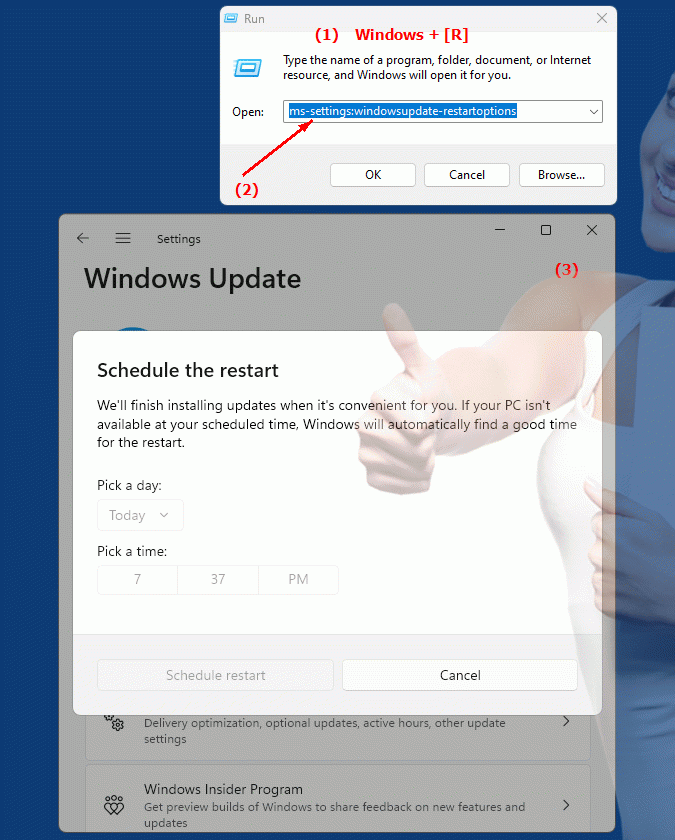
1. Use the Windows R key combination.2. Simply use the command: ms-settings:windowsupdate-restartoptions
(You can also use the command for a desktop shortcut.)
3. Confirm by pressing the OK button or [Enter].
(... see Image-1 Point 1 to 3)
You now have access to the settings described in your Windows 10, 11 or 12.
This solves the following problems and questions.
1b. This solves the following problems and questions.
Where can I find the options for restarting after installing updates in Windows Settings?How do I set the restart options for Windows Update in Settings?
Can I set the times for automatic Windows updates?
How do I change the restart settings in System Preferences?
Is there a way to avoid the restart prompt?
Where in Settings can I see the restart options for updates?
How do I configure Windows update behavior?
Can I manually trigger the restart for updates?
How do I ensure that my system does not automatically reboot after updates?
What options are available for managing Windows updates?
2. Support in Windows 10, 11 and 12 starting with the build numbers.
Availability by Windows version
1. Windows 10:
- The ms-settings:windowsupdate-restartoptions URI is available starting with Windows 10 version 1903 (build 18362). This version introduced improvements to managing update restarts, including the ability to configure restart times after updates. The URI leads to the settings that allow users to set specific options for restarting after installing updates to minimize disruption and increase control over the restart process.
2. Windows 11:
- In Windows 11 version 21H2 (build 22000) and later versions, the "ms-settings:windowsupdate-restartoptions" URI is also available. Windows 11 has modernized Windows Update settings and may have introduced additional features or improvements related to restart options after updates. The URI leads to an updated version of the Restart options that is adapted to the new design of Windows 11 and may offer additional customization options.
3. Windows 12:
- In Windows 12, which will be released in 2024, the "ms-settings:windowsupdate-restartoptions" URI is also expected to be available. The exact implementation and specific build number may vary depending on the latest developments. Windows 12 could include new features and additional improvements to the restart options after updates to give users even more control and flexibility in managing restarts.
Description of the function
The URI "ms-settings:windowsupdate-restartoptions" opens the specific page in Windows Settings that deals with restart options after updates. The main features and options on this page include:
- Restart Schedule:
Users can specify when the computer should restart after an update is installed. This can happen either at a specific time or after a specific period of time.
- Restart reminders:
Users can set up reminders for upcoming restarts to ensure they are notified of upcoming restarts required to complete the installation of updates.
- Automatic Restarts:
Users have the option to enable or disable automatic restarts. When enabled, Windows will automatically restart to complete the installation of updates if the computer is not used during the specified active hours.
- Flexible reboot options:
The site may provide options for flexible reboots to ensure the reboot occurs only when it is least disruptive to the user, or to schedule the reboot to occur after the next boot.
Application
By entering the URI "ms-settings:windowsupdate-restartoptions" in the address bar of the Windows Start menu or by creating a shortcut, users can navigate directly to the Windows Update restart options. This is especially useful for users who want to customize their restart options after updates to minimize disruption and maintain control over the restart process.
The direct link to the Restart Options page allows for easy and quick adjustment of restart settings after updates, helping to ensure a smooth user experience and maximize productivity. Users can configure their restart options to best fit their workflow and preferences to ensure updates are installed efficiently without disrupting daily operations.