1.) # Methode-1 Open the Disk-Management in Windows 7 over the Control Panel!
Step 1 of 3
Please open the "Control Panel" over: » "Start" » » "Control Panel" Step 2 of 3
Please open the: » "Administrative Tools" » » "Computer Management" Step 1 of 3
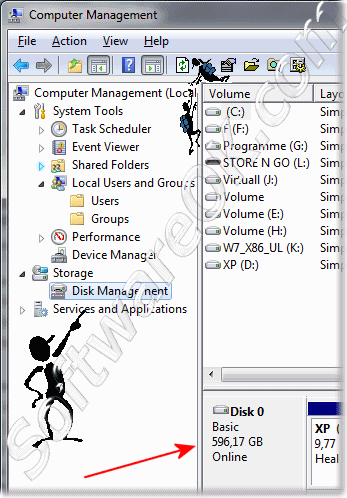
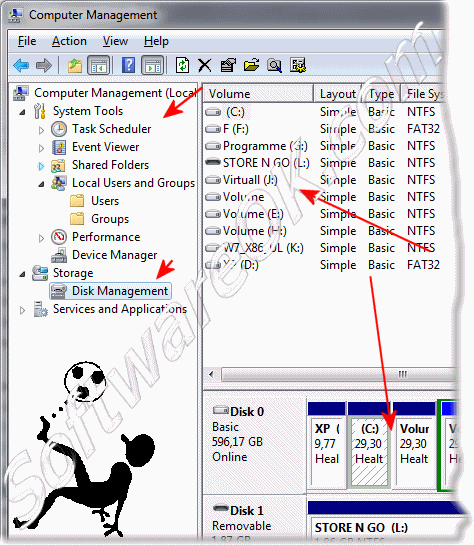
In the "Computer Management" You see now the "Disk-Management".
That's it!
Please use the Disk Management in Windows-7 to perform disk-related tasks such as creating and formatting partitions and volumes and assigning drive letters. Optional you can use the DiskPart command, along with other command-line tools, to perform Disk Management tasks.
Info:
These functions can be found as well in Windows XP, Server 2000-2008 and Vista.
Here you see at the same time: "Task Scheduler", "Event Viewer", "Shared Folders" (Directories), "Performance", "Services" ....
Image-1: Computer Management
Disk Management
2.) # Methode-2 Open the Disk-Management in Windows 7 over the start search box!
Over » "Start"
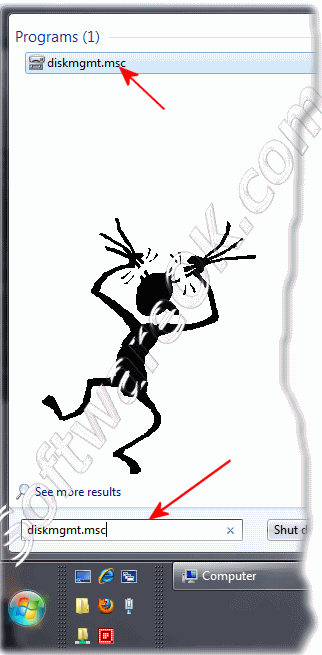
type in » Perform (Edit-Box) "diskmgmt.msc" [ENTER].
Info: This method opens (starts) directly the disk management and works in Windows 7, Windows XP, Server 2000 to 2008 and Vista.
That's it!
Image-2: Start > Disk Management
3.) # Methode-3 Open the Disk-Management in Windows 7 with key [Win-Logo]+[R]!
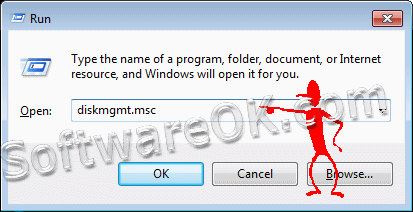
Start "RUN" in Windows-7 with keys [Win-Logo]+[R] and type in »(Edit-Box) "diskmgmt.msc" and press [ENTER] to open the Disk-Management in Windows-7.
4.) # Methode-4 Launch Disk-Management via cmd command in Win-7!
Please start the cmd.exe in administrative mode!
See the Windows-7 FAQ-23: ... Start the Windows 7 cmd.exe in administrator mode!
And enter the command "diskmgmt.msc" to open the Disk-Management in Windows-7.
Microsoft Windows [Version 6.1.7600]

Copyright (c) 2009 Microsoft Corporation.  All rights reserved.

C:\Windows\System32>diskmgmt.msc

C:\Windows\System32>
(Image-3) Computer Management in Windows-7
Info: #Performance Monitor
You can use Performance Monitor to view performance data either in real time or from a log file. Create Data Collector Sets to configure and schedule performance counter, event trace, and configuration data collection so that you can analyze the results and view reports.
# Shared Folders
You can use the Shared Folders Microsoft Management Console (MMC) snap-in to centrally manage file shares on a computer. Shared Folders enables you to create file shares and set permissions, as well as view and manage open files and users connected to file shares on the computer.
#Event Viewer
When you use Event Viewer to troubleshoot a problem, you need to locate events related to the problem, regardless of which event log they appear in. Event Viewer enables you to filter for specific events across multiple logs. That makes it easy to display all events potentially related to an issue that you are investigating. To specify a filter that spans multiple logs, you need to create a custom view.
#Services
Services are often run with default settings - for example, a service might be disabled automatically at startup. You can use the Services snap-in to change the default settings for a service. This is useful if you are troubleshooting service failures or if you need to change the security account under which a service runs.
If you have problems with Aero in Windows 7, to fix and activate it, please start the "Find and fix Aero Problems" in Win-7. Image-1 Find and fix Aero Problems
Yes Is It possible to turn off the Aero in Windows 7 to 100% on Pro and Home, Version W7 starter has no Aero. This permanent disable the Aero example is
No, uninstall of the Internet Explorer 11 or 8 in Windows 7 is not possible , but with this method you have an easy way to deactivate disable the Internet

 "Start"
 "Control Panel"
 "Administrative Tools"
 "Computer Management"