
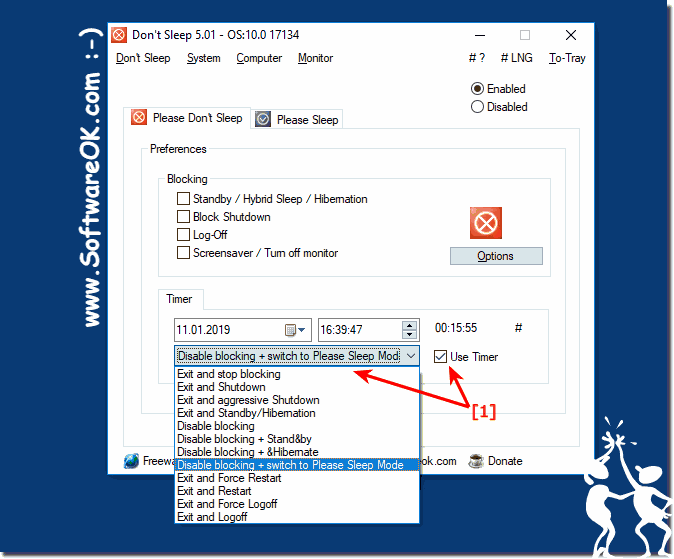
Here is an example how to at timer blocking end, then switch to the please sleep mode in Don't Sleep under Windows!
Content:
1.) ... Unblock the timer!
2.) ... The conclusion on the unblocking and the change!
3.) ... Who benefits most from this feature!
1.) Unblock the timer!
Please in Don'tSleep when the Windows power options leverage via timer and the Select the option:Disable blocking + switch to Please Sleep Mode
Please always use ► ... the latest version of Don't-Sleep!
See also: ► ... Please Sleep Feature in Don't Sleep! ► ... FAQ
| (Image-1) Switch to Please Sleep Mode in Windows! |
 |
Info:
The elegant solution if the computer not go in sleep mode, is not written only for Windows 10, even the screenshot has been made under Windows 10, you can use this example as a solution for problems with Windows Energy Saving or Standby problems.
You can also use it on earlier and older versions of Microsoft's Windows operating systems because there are also problems with the energy-saving mode and hibernation. This energy tool can always be used, regardless of whether the energy saving plan problem is on a Windows desktop computer, or whether you are watching your favorite YouTube videos in coffee or Starbucks on the tablet PC, Surface Pro / Go , or even work on a server operating system.
It is a simple yet effective energy saving plan helper that really makes a lot of sense and has improved working with the energy saving plan, it has been tested on various MS-OSs and successfully verified.
The elegant solution if the computer not go in sleep mode, is not written only for Windows 10, even the screenshot has been made under Windows 10, you can use this example as a solution for problems with Windows Energy Saving or Standby problems.
You can also use it on earlier and older versions of Microsoft's Windows operating systems because there are also problems with the energy-saving mode and hibernation. This energy tool can always be used, regardless of whether the energy saving plan problem is on a Windows desktop computer, or whether you are watching your favorite YouTube videos in coffee or Starbucks on the tablet PC, Surface Pro / Go , or even work on a server operating system.
It is a simple yet effective energy saving plan helper that really makes a lot of sense and has improved working with the energy saving plan, it has been tested on various MS-OSs and successfully verified.
2.) The conclusion on the unblocking and the change!
The bottom line for unblocking and switching to "Please Sleep" mode in Don't Sleep is:
1. Flexibility and Control:
The ability to unblock and switch to "Please Sleep" mode gives users flexibility and control over their computer's power settings. This allows them to re-enable Low Power Mode when they no longer need to be actively working.
2. Efficiency:
By seamlessly integrating these features into Don't Sleep, users can quickly and efficiently switch between different power states depending on their current needs and workflows.
3. Important updates:
It is advisable to always use the latest version of Don't Sleep to benefit from the latest features and bug fixes that ensure smooth use of the "Unblock" and "Please Sleep" features.
Overall, the combination of the ability to unblock and switch to "Please Sleep" mode provides a practical solution to adjust the computer's power management according to current needs, while maximizing efficiency and ease of use.
3.) Who benefits the most from this feature!
Don't Sleep's unblock and sleep mode feature is especially useful for people who:
1. Need flexibility:
Users who have periods of high and low activity during their work benefit from the ability to quickly switch between different power states to adjust their computer's performance accordingly.
2. Have short-term interruptions:
People who regularly have short interruptions during their work, such as for phone calls or meetings, can benefit from the quick activation of the power saving mode to save energy when the computer is not actively used.
3. Prioritize energy efficiency:
Users who value efficient use of their computer's energy can use the feature to ensure that the computer is only active when it is needed and otherwise go into sleep mode.
4. Prefer a user-friendly solution:
People who are looking for a simple and intuitive way to manage their computer's power settings will find this feature to be a practical solution that doesn't require complex settings or configurations.
Overall, people who want a flexible, efficient, and easy-to-use way to manage their computer's power settings will benefit the most from this feature in Don't Sleep.
