
Famous Desktop Calendar in To-Tray of the Windows 11, 10, ... Task-Bar!
 DE
 COM

Update on: 10 November 2026
Suitable for : Windows 11, Windows 10, 8.1, 7, ... , Server 2012-2025, 2022, x64, x32, x86
Suitable for : Windows 11, Windows 10, 8.1, 7, ... , Server 2012-2025, 2022, x64, x32, x86

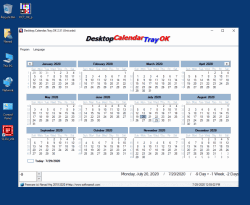
A good helper if you often lose yourself in the days and have no overview of the calendar days in mind!
Key Features in Desktop Desktop.Calendar.Tray.OK
◆ Day and Week difference to a Day
◆ Quick and easy days and weeks orientation
◆ Optional in the Windows taskbar always at hand.
◆ Paste date into the clipboard
Other Specifications:
◆ Optional running in the background
◆ Low CPU usage
◆ Very small
◆ Portable
◆ Multilingual
The calendar for the Windows desktop!
Having a calendar is very convenient on the Windows desktop. For example, you can quickly jump to the desired month or date and view it through this Windows Desktop Tool. Now you can see the first day of the week and the weekly overview is also very convenient. Is not a complex event scheduling and notifications tool!
But that's not all, the calendar will also show you the daily difference when you click on a particular date, as well as how many weeks plus days it is up to this date. Very handy for the office, if you often schedule appointments and the head is so full that you have no idea how many days or weeks are up to this important date. Very convenient is that the date is available in a short and long date format, so you can easily use it by copy and paste for other programs.
This desktop calendar will be an excellent help at work and in everyday of u life. It is convenient to use, does not interfere with other programs, and always stays close at hand.
Who needs that anyway?
Many users are dissatisfied with the complex calendar programs and asked me if I can write a simple calendar, which has just these helpful calendar functions and is incidentally smaller than a Windows shortcut. Sure, you can also install a extensive calendar program on the computer, but what if it's just about the few functions. Even PC novices and inexperienced users are happy with such an easy-to-use desktop calendar and are not overwhelmed with the hundreds of calendar options and it's a nice feeling when you understand the program and you have it under control and not vice versa.
Commitment
The use of the calendar is intended not only for inexperienced calendar users, everyone is able to get with this Windows program with a single grasp the orientation guide in day, week, month. Thus, it is very helpful, even without training, you have fun on the fast calendar access and you benefit from the calendar tool forever.
Even if you do not want to use this desktop calendar, you can test this freeware tool without hesitation, since no installation is required, you can delete it if you do not like it quite quickly, without leaving any traces on the computer.
It is a small calendar program for all Windows NT systems.
The Installation of Desktop Callender
It is convenient that the Desktop Calendar Tray OK does not need to be installed, just download and place it on the desktop and conveniently start from the desktop without installation. It can be used immediately on all Windows operating systems. If you do not like it, just drop it in the trash and the calendar is gone.
| # Desktop.Calendar.Tray.OK Versions History |
| New in version 4.54 // 10 November 2026 Adjustments for the new Windows 11 build; update of language files in Desktop.Calendar.Tray.OK |
| New in version 4.51 // 8 May 2026 Updated language files in Desktop.Calendar.Tray.OK. Minor adjustments for the next Windows 11 Build. |
| New in version 4.48 // 15 March 2026 Minor fixes due to changes in the Windows 11 operating system Update of language files in Desktop.Calendar.Tray.OK |
| New in version 4.45 // 29 November 2025 Optimization and various fixes for Windows 11 and 10 Update of language files in the popular Desktop Calendar Tray for MS Windows |
| New in version 4.44 // 10 October 2025 You can select either the 4x3 or 3x4 layout via the options menu, provided there is enough space available in Desktop.Calendar.Tray.OK. Many users have requested the 3x4 layout in particular, as it makes it easier to recognize the quarters, regardless of whether you are using Windows 10, 11, or 12. |
... complete Versions History
| # Desktop.Calendar.Tray.OK is multilingual and a popular program worldwide: |
| Language | % | Translator Name | |
| 1 | Deutsch / German | 97 % | Nenad Hrg |
| 2 | English / Englisch | 100 % | Nenad Hrg |
| 3 | Nederlands / Dutch | 52 % | A. Van Landschoot |
| 4 | Korean / 한국어 | 100 % | VenusGirl💗 |
| 5 | French / Française | 100 % | Drake4478 |
| 6 | Italian / Italiano | 100 % | bovirus |
| 7 | Polski / Polish | 95 % | zbymal |
| 8 | Traditional-Chinese / 繁體中文 | 100 % | Danfong Hsieh |
| 9 | Greek / Ελληνικά | 95 % | geogeo.gr |
| 10 | Português / Brasil | 50 % | José Carlos Taveira de Souza |
| 11 | Spanish / Español | 50 % | Erik Bakker |
| 12 | Simplified-Chinese / 中文(简体) | 82 % | KW |
| 13 | Romanian / Român | 80 % | Eugen ANTAL |
| 14 | Russian / Русский | 80 % | Valerij Romanovskij |
| 15 | Telugu / తెలుగు | 80 % | బ్రహ్మచారి భానుచైతన్య |
| 16 | Hungarian / Magyar | 80 % | Borbás András |
| 17 | Japanese / 日本 | 80 % | Shōgun 将軍 |
| 18 | Persian / فارسی | 80 % | Mohamed 2020 |
| 19 | Arabic / العربية | 80 % | Mohamed 2020 |
| 20 | BHS / Bosanski/Hrvatski/Srpski | 80 % | Haris Hrnjic |
| 21 | Swedish / Svenska | 82 % | Mr. Swed |
| 22 | Danish / Dansk | 95 % | tskalshoej |
| 23 | Thai / ภาษาไทย | 82 % | Chanchana |
| 24 | Irisch / United Kingdom | 82 % | Brexit |
| 25 | Portuguese / Portuguese | 82 % | Ronaldo C. |
| 26 | Vietnamese / Tiếng Việt (Việt Nam) | 82 % | Huy |
| 27 | Spanish-VE / Venezuela | 82 % | Ricardo A. Rivas |
| 28 | Ukrainian / Українська | 82 % | Mr. Vladimir / Влади́мир |
| 29 | Hindi / हिन्दी | 82 % | The Hindi Man |
| 30 | Malay / Malaysia | 82 % | Washington |
| 31 | Indonesian / Indonesia | 82 % | Indonesian Super Girl |
| 32 | Filipino / Pilipino | 82 % | Abraham Lincoln |
| 33 | Finnish / Suomi | 82 % | Otto |
| 34 | Norwegian / Norsk | 82 % | Norsk-Superman |
| 35 | Czech / Český | 82 % | Mr. Czech |
| 36 | Serbian / Српски | 82 % | Оззии |
| 37 | Bosnian / Bosanski / Hrvatski / Srpski | 82 % | Mujo |
| 38 | Slovenian / Slovenski | 95 % | Jadran Rudec |
| 39 | Flemish / Belgium | 95 % | Pierre VdC |
| 40 | Deutsch-CH / German-Swiss | 95 % | Patrik Studer |
| 41 | Lithuania / Lietuvių | 95 % | Arturas Bajoras |
- Desktop Calendar In Tray?
- Desktop Calendar From Tray on Windows?
- Where can I download a simple calendar for Windows 10, 11 or 12? Is there a small calendar program for the desktop? How do I find a calendar for Windows 10, 11, or 12 taskbar? Where can I find a minimal calendar tool for Windows? Is there a calendar without ads for Windows 10, 11 or 12? How do I install a taskbar calendar for Windows 10? Which calendar tool is fast and easy for Windows 10, 11 or 12? Where can I find a compact calendar for the desktop? How can I find a calendar program with a date copy? Is there a simple tool for calculating daily differences? Which calendar program has low CPU usage? Where can I download a portable desktop calendar? How do I find a calendar for quick date entry? Which calendar tool for Windows is a small size? Where can I find a calendar program without registration for Windows 10, 11 or 12? Is there a calendar for the taskbar in Windows 11? How do I find a minimalist calendar for Windows 10, 11 or 12? Where can I find a calendar tool for easy access in Windows? Which calendar program has low system requirements? How can I find a quick calendar tool for Windows 10, 11 or 12? What simple calendar software tool is available for Windows? Where can I find a taskbar calendar without ads? How do I find a Windows calendar with low resource usage? Which handy calendar tool is available for Windows 10, 11 or 12? Where can I download a desktop calendar with a date copy? How do I find a calendar for daily overview in Windows 10, 11 or 12? Which tool provides quick access to calendar date in Windows? Is there a calendar without additional features for Windows 10, 11, or 12? How do I find a calendar tool with minimal system load? Which Windows calendar program is fast and easy? Where can I find a calendar program for Windows 10, 11 or 12 without installation? How do I download a compact desktop calendar? Is there a calendar with taskbar integration for Windows? How do I find a calendar program without background processes? What efficient calendar tool is available for Windows 10, 11, or 12? Where can I find a minimalist calendar for Windows? How do I find a taskbar calendar for easy use? Which calendar program offers easy navigation in Windows 10, 11 or 12? How can I get quick access to the date with a calendar tool? Which Windows calendar program has an extremely small memory consumption? Where can I find a portable calendar tool for Windows 10, 11 or 12? How do I find a calendar program for the taskbar in Windows 12? Is there a calendar program for Windows 10, 11 or 12 without complications? How do I find a fast desktop calendar for Windows? What simple calendar tool is available for Windows 10, 11 or 12? Where can I find a compact calendar tool without bells and whistles? How do I find a calendar program with a single day difference? Which Windows calendar program has low RAM usage? Where can I find a handy calendar for the Windows desktop? How do I find a Windows calendar that is simple and effective? Which calendar tool is suitable for the taskbar in Windows 8.1? Where can I download a small calendar tool for Windows 10? How do I find a calendar program with low RAM usage? Is there a desktop calendar without complex features for Windows 10, 11, or 12? How do I find a calendar tool for quick date copies in Windows 10, 11 or 12? Which calendar program has low system load? How do I find a taskbar calendar that's easy and fast? Where can I find a calendar for Windows 10, 11 or 12 without registration? Which compact calendar tool is available without installation? How to find a calendar program for Windows 10, 11 or 12 with easy operation? What minimalist calendar tool is there for the Windows desktop? How do I find quick access to calendar data in Windows 10, 11, or 12? Where can I find a calendar tool for the Windows taskbar? Which Windows calendar program is fast and resource-efficient? How do I find a small and efficient calendar for Windows 10, 11 or 12? Where can I find a simple calendar for quick use in Windows 10, 11 or 12?
The calendar for the Windows desktop is suitable for: Windows 12, Windows 11, Windows 10, Windows 10 Pro, Windows 10 Enterprise, Windows 10 Home, Windows 8.1, Windows 8.1 Enterprise and Pro, Windows 8, Windows 8 Enterprise and Pro, Windows 7, Windows 7 Enterprise, Windows 7 Home Basic, Windows 7 Home Premium + Professional, Windows 7 Starter + Ultimate, , X64, x86 and x32 all Windows, MS Windows Server 2019, 2016,2012, .
Quick-FAQ list for the Desktop Calendar
1. Desktop Calendar for Windows 11 and 10 – what does it do?
A small, always-available calendar for the Windows desktop that shows the current date and month at a glance, sits in the system tray, and offers quick date calculations without opening a full calendar application.
More info
2. How do I install Desktop.Calendar.Tray.OK on Windows 11?
Download the setup file, run it, and follow the on-screen instructions. No special configuration is required; the calendar starts automatically after installation and places an icon in the tray.
More info
3. Can I use Desktop.Calendar.Tray.OK under Windows 11?
Yes. The calendar is fully compatible with Windows 11 and runs natively without compatibility mode or additional patches.
More info
4. Who should definitely use a small desktop calendar on Windows?
Users who frequently need to check dates, calculate day differences, or keep the current date visible while working — for example office workers, planners, and anyone who wants quick date reference without a browser.
More info
5. Who should not use the small calendar on the Windows desktop?
Users who need a full-featured organizer with appointments, reminders, and sync across devices should look elsewhere; this tool is intentionally lightweight and focused on quick date reference.
More info
6. How can I show the current date position in the calendar?
The current day is highlighted automatically in the month view, so you can see at a glance where today sits within the month.
More info
7. How can I change the default language in the desktop calendar?
Open the settings and select your preferred language from the available list; the interface updates immediately without a restart.
More info
8. Can I use the desktop calendar commercially in the office?
Yes, the calendar can be used in a commercial office environment; check the license terms for details on deployment across multiple workstations.
More info
9. How can I set the desktop calendar to start minimized in the tray?
Enable the "start minimized" option in the settings so the calendar launches directly into the system tray instead of opening a window.
More info
10. How can I set a hotkey for the day difference calendar?
Assign a keyboard shortcut in the settings to open the day-difference view instantly, without navigating through menus.
More info
11. Why does the calendar show days in the left area for date differences?
The left area displays day counts for date-difference calculations, giving you an immediate reference for how many days lie between two dates.
More info
12. Why is there no organizer integrated in Desktop.Calendar.Tray.OK?
The tool is deliberately kept small and focused on quick date reference; integrating a full organizer would add complexity and overhead that the target users don't need.
More info
13. Why Desktop.Calendar.Tray.OK for Windows?
It offers a fast, lightweight, tray-based calendar with date-difference tools, portable use, and low resource consumption — ideal for users who want quick date access without a heavy application.
More info
14. How can I uninstall Desktop.Calendar.Tray.OK from Windows?
Use Windows Settings ? Apps ? Installed apps, select the calendar, and choose Uninstall; or run the uninstaller from the program folder.
More info
15. I don't want to keep the calendar running in the background – what can I do?
You can close the program completely from the tray icon, or remove it from autostart so it only runs when you launch it manually.
More info
16. What are the advantages of a small calendar on the Windows desktop?
Instant date visibility, quick day-difference calculations, low resource use, tray convenience, and no need to open a browser or heavy calendar app.
More info
17. Who benefits most from a small calendar on the Windows desktop?
People who work with dates daily — planners, administrators, office staff, and anyone who wants a constant date reference without switching applications.
More info
18. How can I use the calendar in the Windows taskbar?
The calendar runs in the system tray next to the taskbar clock; click the tray icon to open the calendar view.
More info
19. Can I paste the date from the calendar into other programs?
Yes, you can copy the date from the calendar and paste it into documents, emails, or other applications.
More info
20. How does the day and week difference calculation work?
Select two dates and the calendar computes the number of days and weeks between them, showing the result directly in the interface.
More info
21. Is Desktop.Calendar.Tray.OK portable and can I use it from a USB stick?
Yes, a portable version is available that runs from a USB stick without installation, making it easy to carry between machines.
More info
22. How can I change the calendar layout to 4x3 or 3x4?
Switch the layout in the settings to arrange the month view as 4x3 or 3x4, depending on your preferred display.
More info
23. Does Desktop.Calendar.Tray.OK support multiple monitors?
Yes, the calendar can be placed on any connected monitor in a multi-monitor setup.
More info
24. How can I make the calendar always stay on top?
Enable the "always on top" option so the calendar window remains visible above other applications.
More info
25. Can I change the font and colours of the desktop calendar?
Yes, font and colour settings are configurable so you can match the calendar to your desktop theme or preferences.
More info
26. How can I translate Desktop.Calendar.Tray.OK into my language?
You can provide a translation via the language files; the program supports community-contributed translations for additional languages.
More info
27. Is Desktop.Calendar.Tray.OK suitable for PC beginners?
Yes, the interface is simple and intuitive, making it easy for beginners to use without prior configuration.
More info
28. How can I remove the calendar from the Windows startup?
Disable the autostart entry in Task Manager ? Startup, or uncheck the "start with Windows" option in the calendar's settings.
More info
29. Can I run Desktop.Calendar.Tray.OK on Windows Server?
Yes, the calendar can run on Windows Server editions, provided the standard desktop environment is available.
More info
30. How does the calendar handle daylight saving time changes?
The calendar uses the system time settings, so daylight saving time changes are handled automatically by Windows.
More info
31. What are the system requirements for Desktop.Calendar.Tray.OK?
A Windows 7/8/10/11 system with minimal free disk space and no special hardware; it runs on low-resource machines.
More info
32. Can I open the calendar with a keyboard shortcut?
Yes, you can assign a hotkey in the settings to open the calendar quickly from anywhere.
More info
33. How can I display the calendar in a different date format?
Choose from available date formats in the settings to match your regional or personal preference.
More info
34. Does Desktop.Calendar.Tray.OK consume a lot of battery?
No, the calendar is lightweight and designed to use minimal resources, so it has a negligible impact on battery life.
More info
35. Can I use Desktop.Calendar.Tray.OK on a touchscreen device?
Yes, the calendar can be used on touchscreen devices, though it is primarily optimised for mouse and keyboard input.
More info
36. How can I reset the calendar to its default settings?
Use the reset option in the settings to restore all preferences to their factory defaults.
More info
37. Is Desktop.Calendar.Tray.OK ad-free and does it contain spyware?
Yes, the calendar is ad-free and contains no spyware or telemetry; it is a clean, standalone tool.
More info
38. How can I use the calendar without administrative rights?
Use the portable version or install it to a user-writable folder so no administrator privileges are required.
More info
39. Can I open the calendar from the Windows taskbar?
Yes, click the tray icon in the taskbar's notification area to open the calendar.
More info
40. How does the calendar handle leap years?
Leap years are handled automatically; February 29 is displayed correctly in the month view and in date calculations.
More info
41. Can I use Desktop.Calendar.Tray.OK in a remote desktop session?
Yes, the calendar runs in a remote desktop session just like on a local machine.
More info
42. What should I do if the calendar does not start?
Check for missing permissions, run it as administrator once, verify the installation, and consult the troubleshooting notes if the problem persists.
More info
43. Does the calendar work on Windows 7?
Yes, the calendar supports Windows 7 in addition to newer Windows versions.
More info
44. How can I change the calendar's transparency?
Adjust the transparency level in the settings to make the calendar blend with your desktop background.
More info
45. Can I run multiple instances of the calendar?
Running multiple instances is generally not intended; use one instance and configure it to suit your needs.
More info
46. How can I hide the calendar window without closing the program?
Click the tray icon or use the hide option to minimize the window to the tray while keeping the program running.
More info
47. Does Desktop.Calendar.Tray.OK require .NET Framework?
No, the calendar is a standalone application and does not require .NET Framework to be installed.
More info
48. How can I contribute a translation for the desktop calendar?
Submit your translation via the project's language files or contact the developer; community contributions are welcome.
More info
49. Can I use the calendar on a Windows tablet or Surface?
Yes, the calendar runs on Windows tablets and Surface devices, though it is optimised for desktop input.
More info
50. What is the difference between Desktop.Calendar.Tray.OK and other calendar tools?
It is intentionally minimal, tray-based, portable, and focused on quick date reference and day-difference calculations rather than full organizer features.
More info
* Famous Desktop Calendar in To-Tray of the Windows 11, 10, ... Task-Bar!
# Info+ # Thanks+