
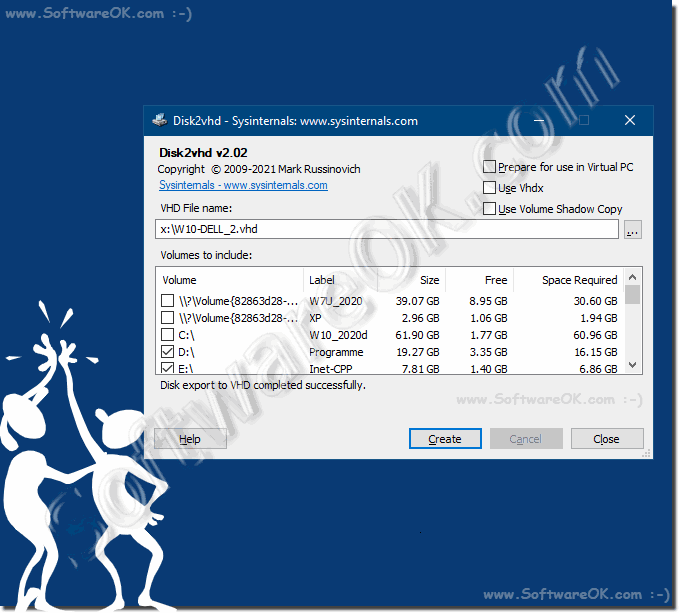
Saving the entire hard drive as a VHD or making a backup makes sense and is also quite quick!To convert a physical hard drive (HD) to a virtual hard drive (VHD) using Sysinternals tools, you can use the Disk2vhd utility. Disk2vhd is specifically designed for this task and is one of the Sysinternals tools.1.) ... Steps to convert HD to VHD with Disk2vhd
|
| (Image-1) Save the entire hard drive as a VHD, make a backup |
 |

2.) An example scenario for use!
Here is a step-by-step example, assuming you have downloaded and unpacked Disk2vhd:
1. Run `Disk2vhd.exe`.
2. Select the checkboxes for the drives you want to convert (e.g. drive `C:
`).
3. Specify `C:
\VHDs\myedisk.vhdx` as the destination path.
4. Make sure the "Use Vhdx" and "Use Volume Shadow Copy" options are checked.
5. Click Create.
6. Wait for the process to complete.
7. Navigate to `C: \VHDs` and check if “mydisk.vhdx” is created.
8. Mount the VHDX in Windows or attach it to a virtual machine.
Conclusion
Disk2vhd is a simple and effective tool for converting physical disks to virtual disks, leveraging the reliability and efficiency of Sysinternals tools. With these steps you can create a VHD or VHDX file that you can use with various virtualization solutions.
3.) Is it also possible with PowerShell or something like that?
Yes, you can also automate the conversion of a physical hard drive to a virtual hard drive (VHD) using PowerShell and Disk2vhd. Here are step-by-step instructions for creating a script with PowerShell:Steps to automate conversion with PowerShell
1. Download Disk2vhd:
- Visit the Sysinternals website or go directly to the Disk2vhd page using the following link:
[Disk2vhd](https://docs.microsoft.com/en-us/sysinternals/downloads/disk2vhd).
- Download the latest version of Disk2vhd and save it to your system, for example in the `C:
\Tools\` directory.
2. Create PowerShell script:
- Open a text editor (e.g. Notepad) and create a new PowerShell script (e.g. `ConvertToVHD.ps1`).
- Add the following code into the script:
# Destination path for the VHD file
$destinationVHD = "C:\VHDs\MyDisk.vhdx"
# Options for Disk2vhd (VHDX and VSS)
$options = "-vhdx -shadow"
# Run Disk2vhd with the selected options and drives
$drivesString = $drives -join " "
$arguments = "$drivesString $destinationVHD $options"
Start-Process -FilePath $disk2vhdPath -ArgumentList $arguments -Wait -NoNewWindow
Write-Output "Conversion complete. The VHD file is located at $destinationVHD"
3. Run PowerShell script:
- Save the script and open a PowerShell session with administrator rights.
- Navigate to the directory where you saved the script, e.g.:
cd C:\Path\To\Script
- Run the script:
.\ConvertToVHD.ps1
Explanation of the script
- $disk2vhdPath:
Here you enter the path to the downloaded `Disk2vhd.exe` file.
- $drives:
A list of drives you want to convert to a VHD. Adjust this according to your needs.
- $destinationVHD:
The path where the VHD file should be saved. Make sure there is enough storage space.
- $options:
Here you specify the options for Disk2vhd (`-vhdx` for VHDX format and `-shadow` for using VSS).
- Start-Process:
This command runs Disk2vhd with the given arguments.
More options and customizations
You can adapt the script to your specific needs. For example:
- Convert only one drive:
Change `$drives` to a single drive, e.g. `C:\`.
- Use other options:
Add or remove options in the `$options` variable depending on your needs.
With this approach, you can efficiently automate the conversion from physical hard drives to virtual hard drives (VHD) and integrate it into your existing PowerShell scripts.
4.) Does Linux, MacOS or Android also have a hard drive backup function?
Yes, Linux, macOS and Android have different tools and methods to create hard drive backups. Here are the possibilities for each operating system:
Linux
Linux offers several tools for creating disk backups. Here are some common methods:
1. dd:
- `dd` is a powerful command line tool that works directly at the block level.
- Example command to create an image of an entire hard drive:
sudo dd if=/dev/sdX of=/path/to/backup.img bs=4M
Where `if` is the input file, `of` is the output file (Output File) and `bs` for the block size.
2. rsync:
- `rsync` is a flexible tool for copying files and directories.
- Example command to backup a directory:
sudo rsync -aAXv /source/directory/destination/directory
3. Clonezilla:
- Clonezilla is a popular open source disk and partition backup tool.
- It offers a graphical user interface and can be used both locally and over the network.
macOS
macOS offers built-in and third-party tools for disk backup:
1. Time Machine:
- Time Machine is the built-in backup tool of macOS.
- It automatically creates incremental backups and allows restoring the entire system or individual files.
- Configuration via `System Settings` > `Time Machine`.
2. Disk Utility:
- Disk Utility can be used to create images of disks and partitions.
- Open Disk Utility, select the disk or partition, then choose File > New Image > Image of [Disk Name].
3. Carbon Copy Cloner:
- Carbon Copy Cloner is a popular third-party tool that provides full disk clones and incremental backups.
- It offers more flexibility and customization options than Time Machine.
Android
Android devices can be backed up in various ways depending on individual needs and access to root privileges:
1. Google Backup:
- Google offers a built-in backup solution that backs up app data, settings, contacts and more.
- Can be found under `Settings` > `System` > `Backup` (the exact paths may vary depending on the manufacturer).
2. ADB Backup:
- ADB (Android Debug Bridge) can be used to create a full backup without root privileges.
- Example command to create a backup:
adb backup -apk -shared -all -f /path/to/backup.ab
And to restore:
adb restore /path/to/backup.ab
3. Titanium Backup (for rooted devices only):
- Titanium Backup is a comprehensive backup tool for rooted Android devices.
- It allows you to backup and restore apps and system data.
Conclusion
Each of these operating systems offers robust tools and methods for creating hard drive backups. While some tools come out of the box (like Time Machine on macOS or `dd` on Linux), there are also numerous third-party options available that provide additional flexibility and functionality.
FAQ 36: Updated on: 18 May 2024 10:49
