Software-OK
≡... News | ... Home | ... FAQ | Impressum | Contact | Listed at | Thank you |

  
HOME ► Windows Images - WinScan2PDF ► «««« 04 / 04 »»»»

Program with which you can transform JPG into PDF!


WinScan2PDF is also a program with which you can convert JPG or JPEG images to PDF, for Windows 11, 10, ... etc. operating systems!


Content:

1.) ... Convert JPG to PDF!
2.) ... Summary of the image to PDF function!
3.) ... Advantages and disadvantages of converting images to PDF files!

1.) Convert JPG to PDF!

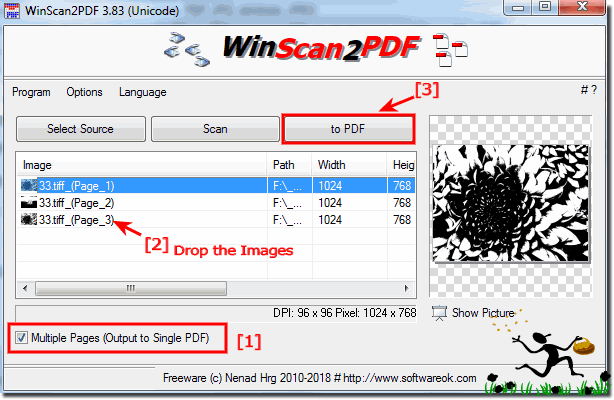
It's best to switch WinScan2PDF to multi-page ► Scan several pages and download them as a PDF!

Then drag the pictures to the list box and press the button to PDF.

You can also convert other images to PDF tiff, png, jpg, gif, bmp, .... 

See also: ► Preview, rotate, customize the page to PDF!

More useful information in ... WinScan2PDF FAQ.!

Please use ... always the latest version of WinScan2PDF!

(Image-1) Program to transform JPG into PDF!
Program to transform JPG into PDF!

-
▲ Back to the top ▲


2.) Summary of the image to PDF function!

WinScan2PDF is a handy tool for converting images to PDFs and it's great that it's available for various Windows operating systems. The ability to drag and drop images into the list box and then click the PDF button makes the conversion process easy and efficient.
 
The option to switch WinScan2PDF to multi-page scanning capabilities is particularly useful as it allows multiple pages to be saved in a PDF document, improving workflow and simplifying file management.
 
Supporting various image formats such as TIFF, PNG, JPG, GIF, BMP, etc. provides flexibility in converting various types of images to PDFs.
 
In addition to the function of converting images to PDFs, WinScan2PDF also apparently offers useful functions such as previewing, rotating and adapting pages to the PDF format, which further facilitates the editing and customization of the PDF files.
 
It is important to always use the latest version of WinScan2PDF to benefit from the latest features and improvements and minimize possible security risks.


-
▲ Back to the top ▲


3.) Advantages and disadvantages of converting images to PDF files!

Converting images to PDF files has both advantages and disadvantages:

Advantages:

1. Space saving:

PDF files can combine multiple images into a single document, saving storage space and making file management easier.

2. Portability:

PDF is a widely used file format that can be easily viewed on most devices and operating systems, making it easy to share and exchange documents.

3. Security:

PDF files can be protected with passwords and/or given digital signatures to ensure the security of the images they contain.

4. Professional Look:

By converting images to PDF files, you can create high-quality documents that look professional and are easy to read.

5. Editing Features:

Many PDF editors provide PDF editing features like adding text, annotations, watermarks, etc., which increases the flexibility in designing the documents.

Disadvantages:

1. Loss of quality:

There may be loss of quality when converting images to PDF files, especially if the image compression is too strong or the PDF file uses lower image resolution settings.

2. Size Limits:

Some PDF creators or services may have size limits for uploaded files, which may limit the conversion of larger image collections.

3. Compatibility Issues:

Not all PDF viewers or readers may be able to display certain PDF files correctly, especially if they contain complex layouts or fonts.

4. Possible inconsistencies:

When converting images of different sizes, formats, or resolutions to PDF files, inconsistent results may occur, which may affect the appearance of the document.


Overall, most situations when converting images to PDF files offer more advantages than disadvantages, especially when the right tools and settings are used to ensure high quality and optimal compatibility.


-
▲ Back to the top ▲


Updated on: 22 April 2024 08:08 Windows
Keywords: winscan2pdf, images, program, transform, into, solution, simple, PDF, JPG, windows, JPEG


Similar information on the page

Windows

... Scan works also on Windows 10/11 to easy save into PDF


Scan to PDF Tool for Windows also works on Windows Ten to easily save the scanned page in a single PDF file / document for Windows 11, 10, and MS Server
Windows

... Windows Photos and Pictures convert to single PDF file, easy and fast


Its easy to convert Windows photos and images into a single PDF file , simply and quickly for MS Windows 11, 10, etc Contents: 1. Photos and
Windows

... Direct scan the documents and save them as a pdf


The solution for a direct scan of the documents and save as a pdf file on Windows 10, 8.1, The solution ergo instruction, example is written for Windows
Windows

... Scan a document with a front and back page and save it as multi single PDF


Scan at the 100th of a document with a front-back and then save them as multiple PDF individual files This task can become a daily task on WIA and TWAIN,
Windows

... How to create a PDF from Screenshot or other Images?


The solution is simple to create a PDF from multiple Screenshot or other Images with WinScan2PDF or from multi frames TIFF file
Windows

... When the computer or monitor does not go into sleep mode


With this tool, the solution is very easy if the computer or monitor does not go into sleep mode By default, Windows energy-saving functions turn off the
Windows

... How to auto run a program at a certain time in Windows 8.1 / 10?


The solution is simple to auto run start a program or application at a certain time in Windows 8.1 / 10. Here is the example to start the MS-Explore and


▲ Back to the top ▲


See also : ... WinScan2PDF FAQ
Back to : ... WinScan2PDF Homeage

... WinScan2PDF Tip


4ur-Windows-8-Mouse-Balls # AutoHideDesktopIcons # ClassicDesktopClock # Delete.On.Reboot # DesktopDigitalClock # DesktopSnowOK # ExperienceIndexOK # Find.Same.Images.OK # FontViewOK # IsMyHdOK # KeepMouseSpeedOK # MagicMouseTrails # MeinPlatz # PointerStick # Q-Dir # QuickTextPaste # Run-Command # TheAeroClock # WinScan2PDF #


  + Freeware
  + Order on the PC
  + File management
  + Automation
  + Office Tools
  + PC testing tools
  + Decoration and fun
  + Desktop-Clocks
  + Security

  + SoftwareOK Pages
  + Micro Staff
  + Freeware-1
  + Freeware-2
  + Freeware-3
  + FAQ
  + Downloads

  + Top
  + Desktop-OK
  + The Quad Explorer
  + Don't Sleep
  + Win-Scan-2-PDF
  + Quick-Text-Past
  + Print Folder Tree
  + Find Same Images
  + Experience-Index-OK
  + Font-View-OK


  + Freeware
  + CoronaKO
  + MatriX.CoronaKO
  + Find.Same.Images.OK
  + 3D.Benchmark.OK
  + PhotoResizerOK
  + Office.Files.Images
  + Film.Strip.Explorer
  + WinScan2PDF
  + DontSleep
  + PAD-s


Home | Thanks | Contact | Link me | FAQ | Settings | Windows 10 | gc24b | English-AV | Impressum | Translate | PayPal | PAD-s

 © 2026 by Nenad Hrg ERR2: softwareok.de • softwareok.com • softwareok.com • softwareok.eu
50.49 msec.


>> ☕ Buy SoftwareOK a Coffee ☕ <<


► Direct access to Windows 8.1, 8 or Win 10 Sounds via desktop shortcut in Win 8.1? ◄
► The ejection of the VHD over the MS Explorer in Windows 8.1 / 10! ◄
► How can i start the paint program in Windows 8.1 or Win 10 (run, open, find)? ◄
► On the notebook / laptop JKL is 123, what can I do? ◄


This website does not store personal data. However, third-party providers are used to display ads,
which are managed by Google and comply with the IAB Transparency and Consent Framework (IAB-TCF).
The CMP ID is 300 and can be individually customized at the bottom of the page.
more Infos & Privacy Policy

....