
Why do some programs need to run as an administrator and what happens when you do this?
Content:
1.) ... The obligation to start some programs as an administrator!
2.) ... Security risks when running a program as an administrator!
3.) ... Do other operating systems also have something like administrator mode?
1.) The obligation to start some programs as an administrator!
Everyone who is curious would like to know more about what happens on the Windows 11/10 operating system when you instruct the operating system to run a program as an administrator on Windows 10 and why this process is required at all.When you log on to Windows, your account is assigned a type of user account that contains identifying information, including your user groups and permissions such as read, write and execute permissions. The information in this user account includes a level of integrity that is used by the operating system to determine the trustworthiness of objects such as files, registry keys, to inform users about the start of installations and to protect processes from unnecessary access to system files.
By default, a standard user account has medium integrity. This is the maximum level available for creating a process if you open an executable file without granting increased access through administrator credentials .
Even though Microsoft does not recommend running programs as an administrator and giving them access to integrity with no good reason, new programs must be installed in order for you to be able to install an application that always requires administrator access with user account control enabled, as well as other software, as well Scripts often work with an elevated status.
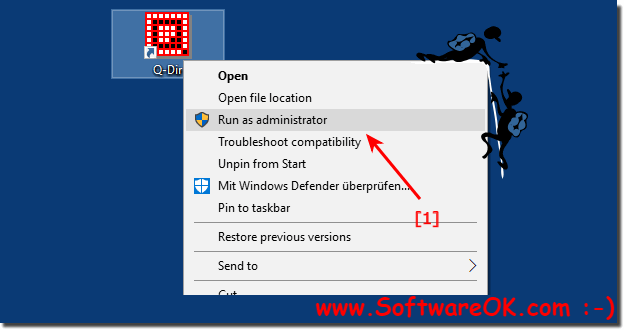
| (Image-2) Running as administrator program dangerous on Windows 10! |
 |
Info:
Given Microsoft's philosophy of giving programs the least possible access, configuring an application that always runs as an administrator is generally not recommended, but is sometimes useful when the software always requires an upgrade so that you don't do everything Times have to jump through these framed queries.
Given Microsoft's philosophy of giving programs the least possible access, configuring an application that always runs as an administrator is generally not recommended, but is sometimes useful when the software always requires an upgrade so that you don't do everything Times have to jump through these framed queries.

2.) Security risks when running a program as an administrator!
Some programs require running as administrator to access certain system resources or protected files and settings. This is done for security reasons and to ensure that the program has the necessary permissions to perform certain actions.
When you run a program as an administrator, it runs with elevated privileges beyond normal user privileges. This means that the program can access system files, make system changes and perform administrative tasks that are usually off-limits to regular users.
If you run a program as an administrator, you may be asked for your consent by entering your administrator password or clicking Yes when the User Account Control window appears (if enabled). Once you grant the necessary permissions, the program will start with elevated privileges.
It is important to note that running a program as an administrator can introduce potential security risks, especially if the program comes from an untrusted source or you are unsure why it needs administrator privileges. For this reason, you should ensure that you only run trusted programs as an administrator and carefully review permission requests before agreeing to them.
3.) Do other operating systems also have something like administrator mode?
Yes, other operating systems have similar concepts to Administrator Mode in Windows, although they may use different names for it. Here are some examples:
1. macOS:
On macOS, there is a similar concept called “Root”. The root user has the highest privileges on the system and can access all files and settings. However, typically on macOS, root access is disabled by default and users are instead prompted to perform administrative tasks via the “sudo” (substitute user do) commands or via the Terminal prompt window.
2. Linux:
On Linux systems there is the superuser, also called “root”. The root user has full control over the system and can perform any actions. As with macOS, root access is disabled by default on most Linux systems and administrative tasks are typically performed via the sudo command, which grants users temporary root privileges.
3. Android:
Android, which is based on the Linux kernel, also uses a similar concept to Linux. There is a “superuser” or “root” who has advanced privileges and can perform certain actions that regular users cannot. Root access on Android devices is usually disabled, but advanced users can enable it by changing the operating system.
These administrator or superuser concepts are important security mechanisms that ensure that not every user on a system has full access. Instead, only authorized users with elevated privileges can access system resources and perform administrative tasks. This helps ensure the integrity and security of the system.
